WinMac
macOS app that gives people switching from Windows their familiar shortcuts, window snapping, Dock previews, a Start menu and a taskbar.
WinMac is a macOS app for people switching from Windows. Anyone who gets a Mac after years on Windows spends the first weeks tripping over small things. Ctrl+C copies nothing, the green button sends a window to full screen instead of maximising it, the Dock does not show which windows an app has open, and the mouse wheel scrolls the other way. Home jumps to the start of the document, not the line. Each of these costs a second, but a day adds up to a hundred of them. WinMac brings these habits back without taking away the Mac's own ⌘ shortcuts.
One app instead of a pile of utilities
The usual route is to assemble several smaller tools: one for window snapping, another for an Alt-Tab switcher, a third for the mouse wheel, a fourth for keyboard shortcuts. Each has its own settings and its own idea of which key belongs to it, so they start getting in each other's way. System Settings cover only a fraction of what someone coming from Windows expects.
WinMac keeps everything in one settings window, split by area: windows, Start and taskbar, keyboard, mouse, Finder, sound and battery. Every feature can be turned off separately. When another app on the Mac reacts to the same keys or clicks, WinMac lists it in settings and recommends turning one of them off.
On first launch it asks: "Switching from Windows?" The setup assistant offers shortcuts, mouse behaviour and keyboard layout in groups. Whatever the user leaves unchecked stays the Mac way, and everything can be changed later.
Windows behave as they do on Windows
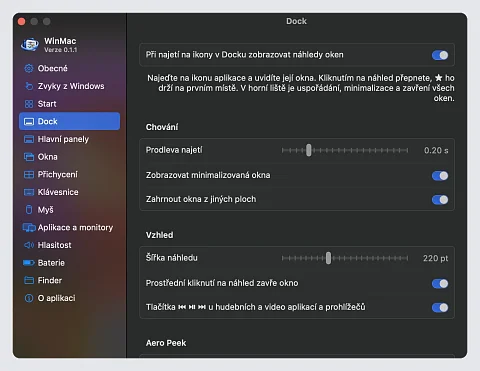
- Dock previews. Hovering over an app icon shows thumbnails of its windows, including minimised ones and windows on other desktops. A click switches to the window, a middle click closes it, a star pins it to first place. Music and video apps and browsers get ⏮ ⏯ ⏭ buttons in the preview.
- Aero Peek. When the mouse rests on a preview for a moment, the real window appears at full size in its place and the rest of the screen dims.
- Alt-Tab switcher. Switches between windows, not just apps, with window previews and search by title. It can be limited to the display with the mouse pointer.
- Edge snapping. A window dragged to a side takes half the screen, to a corner a quarter, to the top it maximises. At the top centre, layouts in halves, thirds and quarters appear as in Windows 11. Snap Assist then offers other windows for the remaining space, and on release the window aligns to its neighbours.
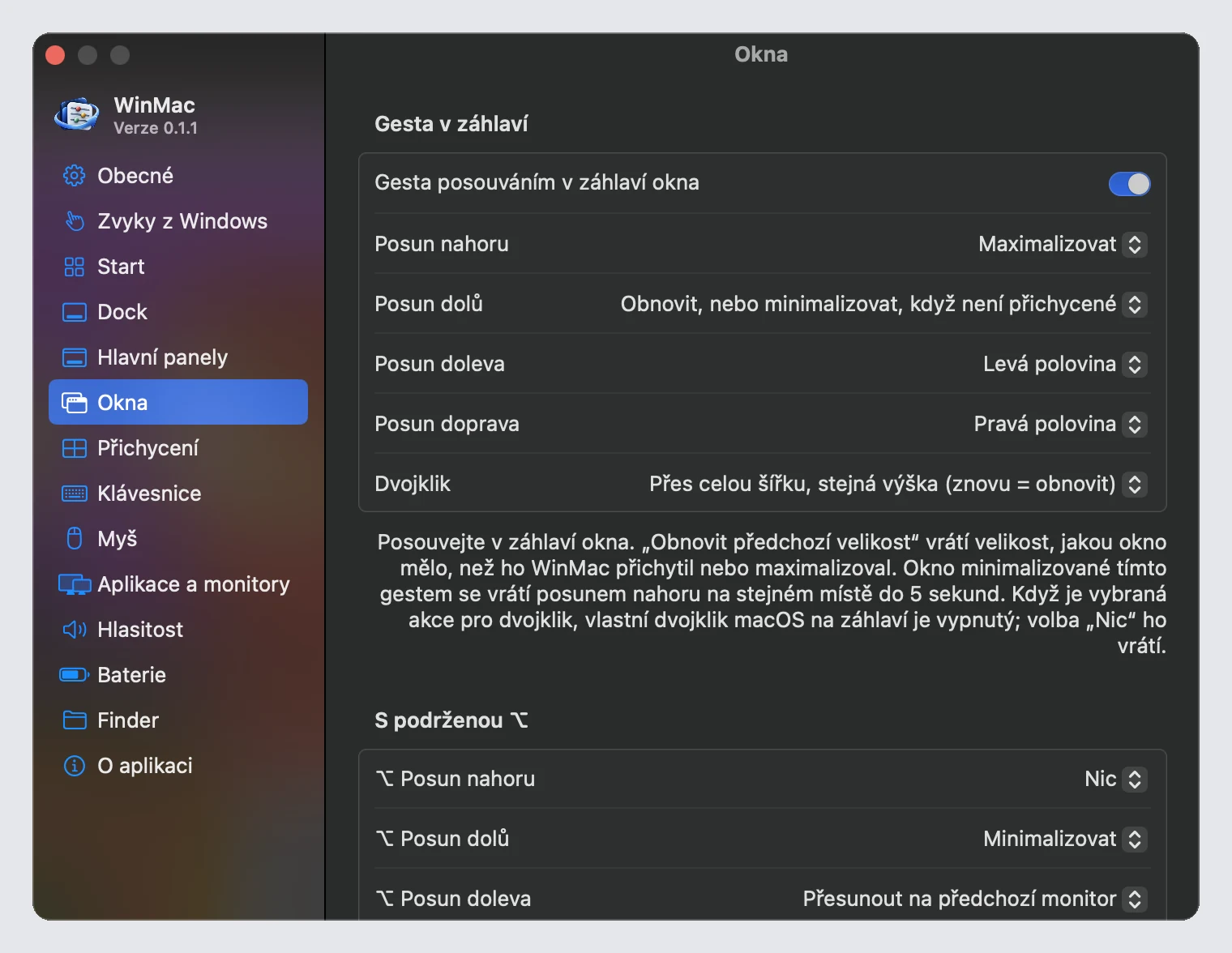
- Title bar gestures. Scrolling up on a window's title bar maximises it, scrolling down restores its size. The user picks the action for each direction and for a double-click.
- Multiple displays. Buttons for moving a window to another display appear in the title bar. WinMac remembers window positions for each display arrangement and puts windows back where they were when you return to the office.
- Always on top. A chosen window stays visible above the others as a live picture, refreshing at 10, 30 or 60 frames per second.
- Move from anywhere. With a modifier key held, a window can be dragged by any point, and with ⇧ added it resizes from the nearest corner.
On newer macOS with the system window tiling turned on, WinMac leaves edge snapping to the system so that two tools do not react to the same mouse drag.
Start, taskbar and a clock in the bottom right
The Start button and menu open recently used apps, folders and tools next to a power button and a search field. Search covers files in the home folder, System Settings and the titles of open windows, and it doubles as a calculator: type 12*7, press Enter and the result is on the clipboard. The menu opens with a key the user chooses, for example the left ⌘ on a PC keyboard, where the Windows key sits.
A Windows-style taskbar can replace the Dock or appear only on displays without the Dock. Icons can be grouped by app or shown per window with a title. On the right are a clock with date and calendar, a notification area and a Show Desktop button. The taskbar can auto-hide, and its transparency is adjustable.
A PC keyboard without relearning
- Ctrl+C, Ctrl+V, Ctrl+X, Ctrl+Z, Ctrl+Y, Ctrl+A, Ctrl+S and others work as on Windows. Terminals and virtual machines keep their own keys.
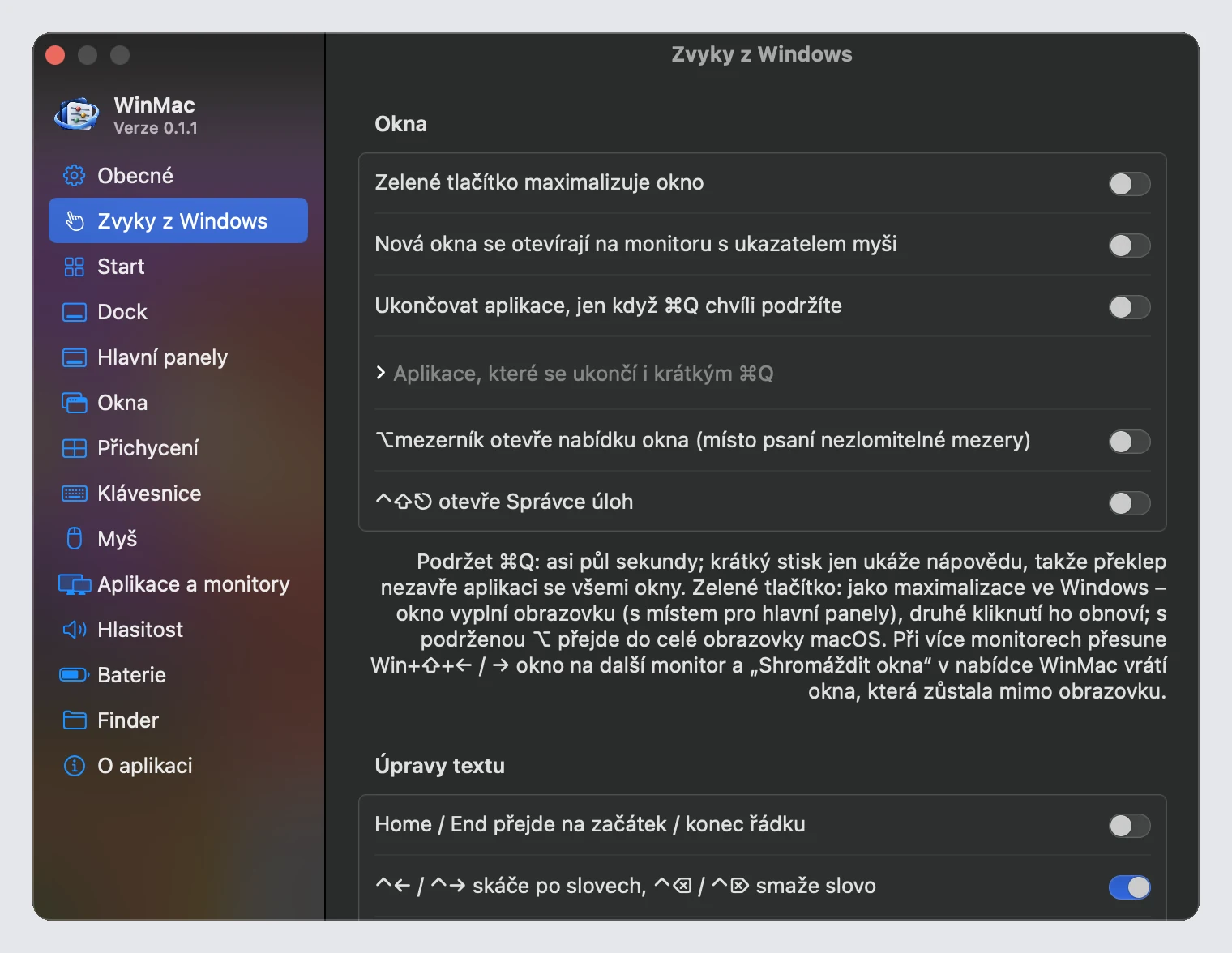
- Home and End jump to the start and end of the line, Ctrl+arrows move by word, Ctrl+Backspace deletes a word. Ctrl+Shift+V pastes plain text in any app.
- Windows key shortcuts: arrows for screen halves, Win+1 to 9 for apps in the Dock, Win+R for the Run dialog, Win+E for a new Finder window, Win+D for the desktop, Win+M to minimise all windows.
- Ctrl+Shift+Esc opens a small Task Manager with running apps and their CPU and memory use.
- WinMac installs Czech, Slovak and UK keyboard layouts that type exactly as on Windows. The right ⌥ also works as AltGr following the Windows layouts: Czech, Slovak, German, UK or US International. It can swap the fn and Control keys on Apple keyboards and set F1 to F12 as standard function keys.
- An app quits only when the user holds ⌘Q for a moment, so a slip next to ⌘W does not quit the whole app. Holding ⌘ for a second shows a shortcut overview.
Mouse, trackpad and Finder
The mouse wheel can scroll as on Windows, independently of the trackpad, which keeps scrolling the Mac way. There is also smooth scrolling, turning off pointer acceleration, zooming with Ctrl and the wheel, and ClickLock, where holding the button locks it and the next click releases it. A three- or four-finger tap on the trackpad is a middle click.
Finder gets File Explorer habits: ⌘X and ⌘V cut and move files, F2 renames, Enter opens, Delete moves to the Trash, ⌥↑ goes up a folder and F5 refreshes the listing. The context menu gains New File (text, Markdown, RTF or from a template), Copy Path and Open in Terminal.
Per-app volume and battery of connected devices
A mixer in the menu bar sets the volume of each app separately, as on Windows; it requires macOS 14.2 or newer. The battery item shows charge, health and remaining time, colours the status by charge level and warns when the Mac's battery health drops below a chosen threshold. When an iPhone or iPad is connected by cable, it also shows that device's battery and warns when it is nearly empty.
Who WinMac is for
- People moving to a Mac after years on Windows who do not want to relearn hundreds of small movements.
- People who use Windows at work and a Mac at home and do not want to keep two sets of shortcuts in their head.
- Companies that give Macs to employees used to Windows.
- Users of a PC keyboard and a wheel mouse connected to a Mac.
What the app needs and what it sends
WinMac asks for two macOS permissions: Accessibility, to read and move windows and capture keys, and Screen Recording, for window previews. Once the user grants them, WinMac picks up the change by itself. Crash reporting can be turned off with one switch and contains only the error, the stack trace and the WinMac and macOS versions, with no window titles, file names or personal data.
Project status
WinMac is in development; the current version is 0.1. It runs on macOS 14 and newer, with a Czech and English interface. It is not publicly available for download yet.
Interested in using it?
Want to try WinMac or roll it out in your company? Write through the enquiry form or to dev@nks-hub.cz.